
Incident User Groups manage incidents in Logpoint. They help maintain a level of discretion while managing alert ownership and viewing the incidents.
You can add existing user groups to new incident user groups.
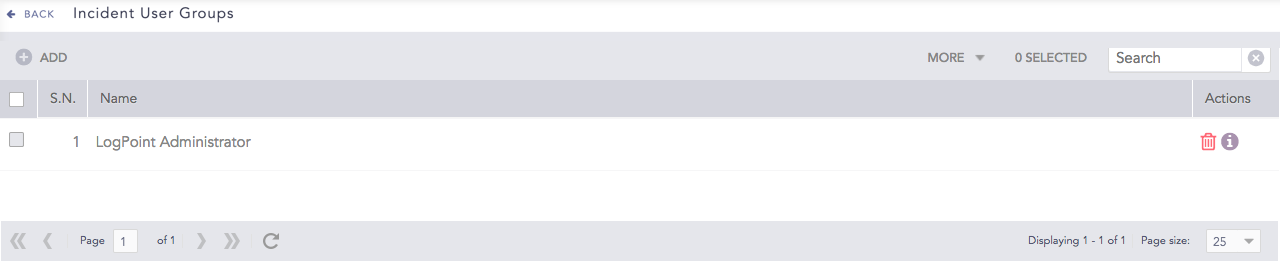
Incident User Groups
Note
Only the users of the Logpoint Administrator group and the User Account Administrator group can access the Incident User Groups setting item.
Click the Details icon from the Actions column to view the details of an incident user group.
Go to Settings >> User Accounts from the navigation bar and click Incident User Groups.
Click Add.
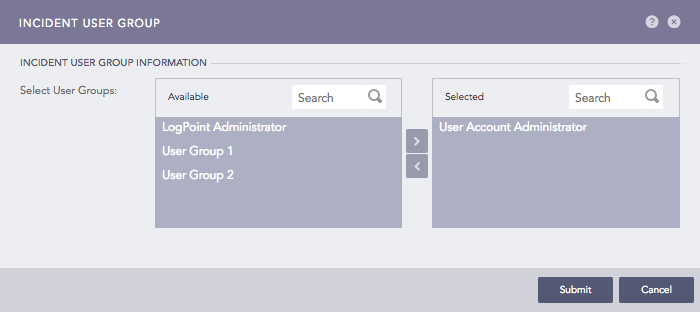
Adding an Incident User Group
Double-click or drag and drop the available user groups to select them.
Click Submit.
Note
Click the ? icon in the top-right corner to get help on the inputs.
You can manage an alert’s ownership while creating an alert rule. Refer to Creating an Alert Rule section for the steps to create an alert rule.
You should be a user of at least one incident user group to select the Assigned to and Manageable by users to manage an alert’s ownership.
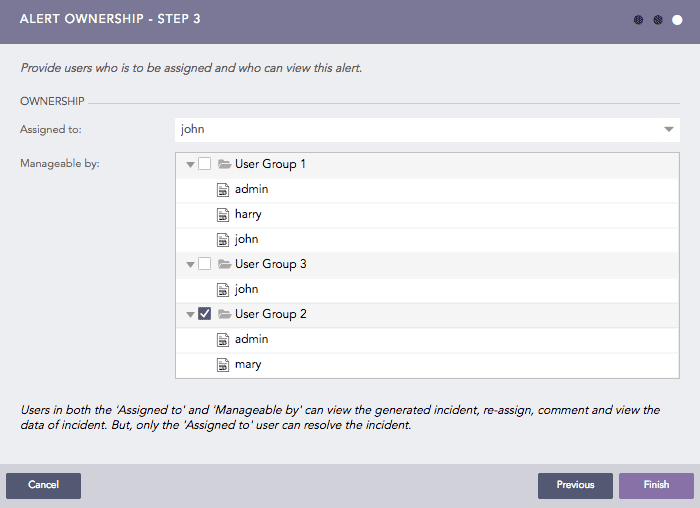
Alert Ownership
The Assigned to drop-down lists all the distinct users mapped to the incident user groups. Only these users can resolve the incidents.
The Manageable by list displays all the incident user groups present in the system.
Both the Assigned to and Manageable by users can view the generated incident, re-assign, comment, and view the incident data.